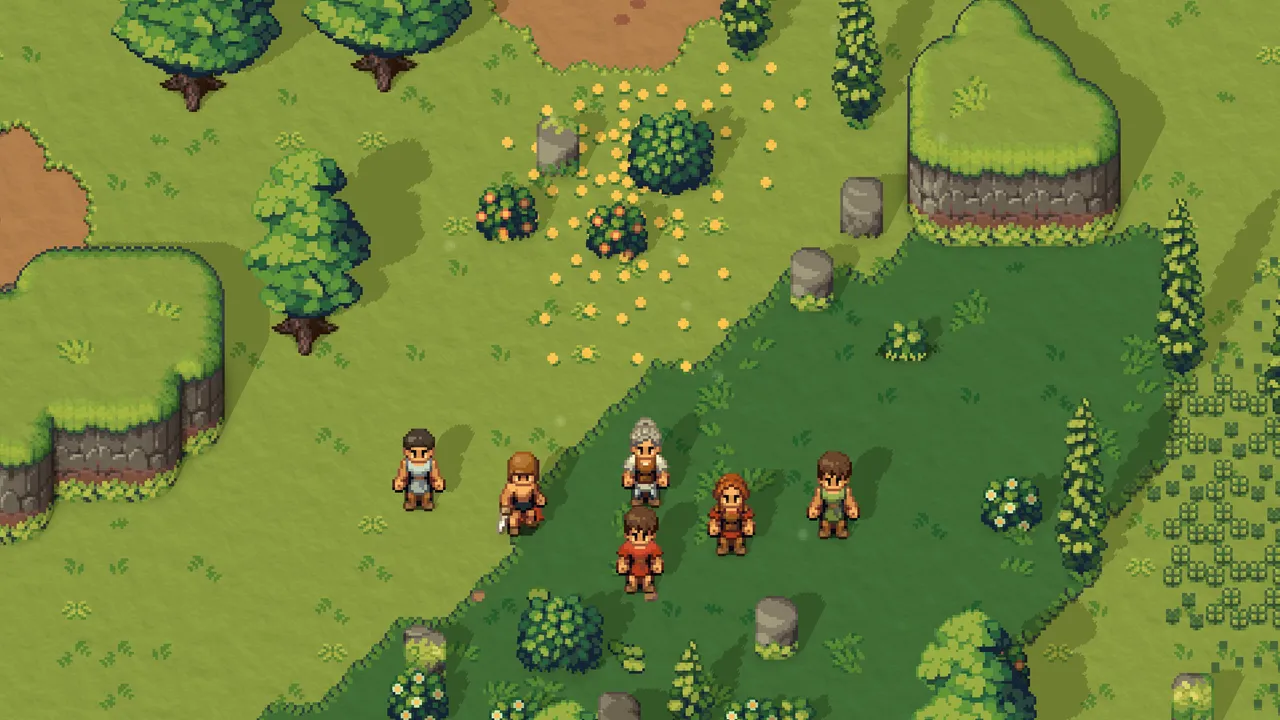
Romestead Multiplayer
Everything you need to play Romestead co-op — how to host a world, how friends connect, the port to forward, and how to fix the usual connection errors.
Romestead has online co-op for up to 128 players. One player hosts the world from inside the game, and everyone else connects to them — over the internet (a Steam invite or the host's IP address) or over LAN. There is no separate dedicated-server program in this build, so the world is only online while the host is actually playing.
How to host a server
- 1
Open the Multiplayer menu
From the main menu, choose Multiplayer, then Host multiplayer for online play — or Host LAN multiplayer if everyone is on the same local network.
- 2
Choose a world to host
Create a new world or pick an existing save. Whatever you select becomes the shared world everyone plays in.
- 3
Set your host settings
In Host settings you can turn on Use password and set one, so only people you share it with can join your server.
- 4
Start hosting
Confirm with Host. Romestead starts the local game server and loads your world. You are now hosting on UDP port 8050, with room for up to 128 players.
How friends join
- Steam invite (easiest)
- Invite a friend through the Steam overlay or friends list and they drop straight into your game. No IP or port forwarding needed.
- Direct connect by IP
- Have them choose Multiplayer → Join multiplayer, type your Address (your public IP) and Port (8050), then press Connect. A password prompt appears if you set one.
- LAN
- On the same network, host with Host LAN multiplayer; others join using your local IP address.
Port forwarding & server settings
For internet players connecting by IP (not Steam), the host must forward UDP port 8050 to their PC in their router and allow Romestead through the firewall. Friends then connect to the host's public IP (check it with a “what is my IP” site). Steam-invite play skips all of this.
A hosted world holds up to 128 players and can be locked with an optional password. Once you're in, the in-game console commands help you manage the session.
Fixing connection errors
- “Invalid Address” / “Unknown Host”
- The address is mistyped or unreachable. Re-check the host's public IP and that port 8050 is forwarded.
- “Invalid password.”
- Wrong or empty password — get the exact one from the host.
- Connection timed out / no response
- A firewall or missing port-forward is blocking UDP 8050, or the host isn't actually hosting right now.
- Version mismatch
- Host and joiner must be on the same Romestead version. Update both, then retry.
- “The server shut down.”
- The host closed the game or stopped hosting — the world goes offline with them.
- “Kicked from Server”
- The host removed you from the session.
Frequently asked questions
Does Romestead have a dedicated server?
Not a standalone one in the current build. You host directly from inside the game (Multiplayer → Host multiplayer), and the world supports up to 128 players. Because the world runs inside the host's game, it is only online while the host is actually playing — there is no separate server program to leave running 24/7 yet.
What port does Romestead use?
Romestead uses UDP port 8050 by default. For internet players to connect by IP, the host needs to forward UDP 8050 to their PC and allow the game through their firewall. Joining through a Steam invite does not require port forwarding.
How many players can join a Romestead server?
Up to 128 players by default.
How do my friends join my game?
Either invite them through Steam (they join straight in), or have them choose Multiplayer → Join multiplayer, enter your Address and Port (8050), and press Connect. If you set a password they will be asked for it.
Why can't my friend connect to my server?
The most common causes are: UDP port 8050 is not forwarded or is blocked by a firewall, the two of you are on different game versions, or the IP address or password was entered incorrectly. Steam invites avoid the port-forwarding problem entirely.